traceroute
INTRO
tracerouteis the linux command that prints the route that a packet takes to reach the host.- Used to show the route data packets take.
- traceroute not only pings the final destination, it also pings each router on its way to the destination.
traceroutecommand is much similar to thepingcommand.- The main difference between is,
Pingcommand is used to check if a particualar IP address is accessible or not. It works by sending a packet to the destination of the domain name. It also measures the round trip time.traceroutecommand will show the number of steps(hops) required to reach the destination. It will also show the time lapse of each step.
- Measures the round trip time.
- Traceroute can pinpoint where the problem lies.
tracerouteis not a default utility of the linux system. To use the traceroute, we need to install it manually. To install, use the below commands.sudo apt install inetutils-traceroutesudo apt install traceroute
- The utility can show an estimate of the time taken by packets as they move through intermediate routers.
Terms need to know
hops- The journey from one computer to another.TTLTime to Live.Data packetsunits of communication that travel along a given network path
WHEN TO USE
traceroutecommand can be used when troubleshooting possible connection issues to website.- When a website/domainname is not reachable, we will use the traceroute command.
- Sometimes, the website is running and healthy, situation, due to the breakdown of the intermediate routers website can't be accessed.
- In these case, we can use the
tracerouteto check at which step the request has taking the break.
Using tranceroute
- command:
traceroute twitter.com
- From above, we can see that there are 12 hops/stages between our computer and the twitter website/destination.
- In first line, you can see the I.P address of the twitter.
- From next line, you can see the HOPS.
- The format of the each HOP line as follows.
- The name of the device.
- The I.P address.
- The time it took round trip for each of the three tests.
Available Options
-n--> To hide the device names.-q--> Increase/Decrease the packets.-f--> To filter the HOPS request.-p--> Set the base UDP port number used in probes. The default is 33434.
Hiding devic names
- Sometimes, it is tedious to analyse using with device names. To make it easier, use below command to hide the devices names.
- command :
traceroute -n twitter.com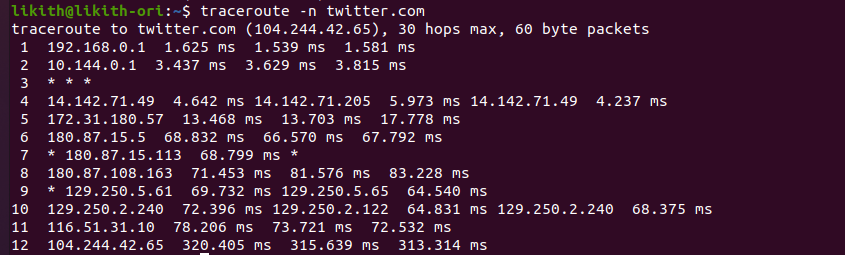
Setting the Number of Tests
- By default, traceroute sends three packets to each hop. We can use the
-qflag to increase or decrease. - command:
traceroute -q 1 twitter.com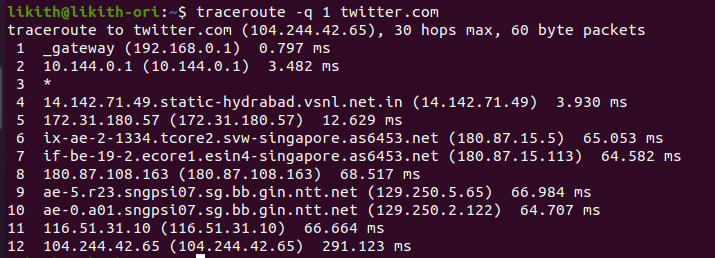
TTL option
- If we need to check only from certain hops, we can filter the hops requests as follows.
- command:
traceroute -f 10 google.com
Port changing
- By default, traceroute uses the 33434. But sometimes, website that we trying to access.
TROUBLE SHOOTING EXAMPLE
Sometimes, we need to look for availability of domain. For this we will use
ping/curlfollowed by the domain/I.Pcommand :
curl bajaj-dev.oriserve.com

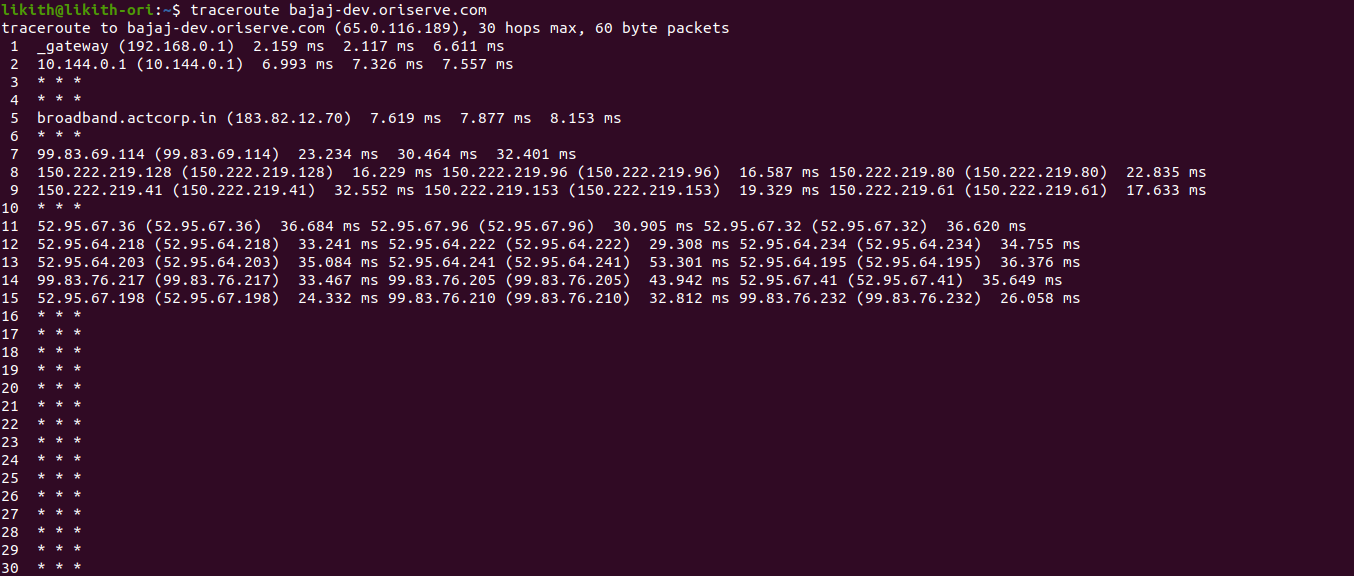
From above we can see that, domain is not reaching.In this case, we need to investigate in more detail. So, we need to use
traceroutecommand.command :
traceroute bajaj-dev.oriserve.com
How to Read a Traceroute output ?
When running a traceroute, the output shows the path packets take when traveling to a destination point.
The first colums indicates the hop number
The second columns three columns show the round-trip time for a total of three packets.
- For nearby networks, these numbers are usually below 100ms.
- For distant networks in other countries, typical RTT values go up to 300ms.
Mainly,we can observe the
asterisksymbols. This message indicates that.- The router is down.
- The router is configured not to return traceroute results.
- A firewall is enabled on the router.
- A time-out for one of the previous routers.
The last column displays the destination I.P address.