Mounting EBS SOP
Scenarios
- EBS volume created from a snapshot.
- Attaching an existing volume to another instance.
- Attaching a new EBS volume to an instance.
Steps
Assuming that we already have an EBS volume to attach to an instance.
- The device could be attached to the instance with a different device name than you specified while attaching the volume.
- For example:
/dev/sdfcan be changed to/dev/nvme1n1, the new namind depends on how many existing volumes are currently attached.
- For example:
- Use
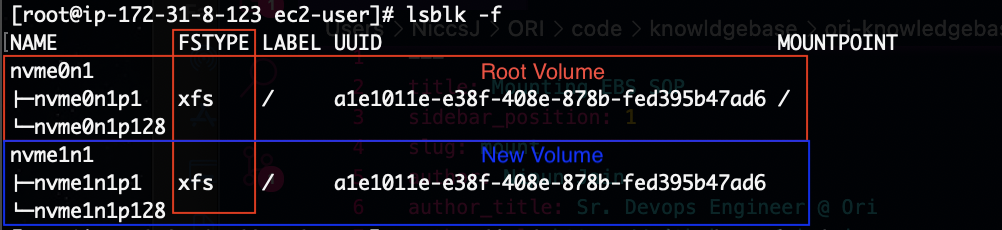
lsblk -fto view available disks - Checked whethere or not the new volume has a filesystem on it.
- This can be checked either from the outout of the
lsblk -fcommand in the FSTYPE column. As seen in this case, we have FSTYPE of xfs, which is correct since, this volume was create from a snapshot. - Or,
file -s /dev/nvme1n1p1, here p1 denotes the partition. If you get an output where new volume isn't partitioned, then simple check filesystem for whole disk,file -s /dev/nvme1n1 - Ideally, a new volume shouldn't have a FileSystem on it.
- While, if you're restoring from a snapshot, then it should as seen in above image. If it doesn't have a filesystem in this case, it means something when wrong with either the snapshot or while attaching the volume.
- In this case, detach the volume from the AWS console.
- Delete this and create a new volume from the snapshot and try again.
- This can be checked either from the outout of the
- (Conditional) Create a file system with
mkfs -t xfs /dev/nvme1n1 - Create a mount point with the mkdir command,
mkdir -p /mnt/newvol - Mount the new volume.
- If mounting a volume which already had a partition make sure to mount the partition which had the filesystem.
mount /dev/nvmen1p1 /mnt/newvol
- If mounting a new volume for which filesystem was create in above step.
mount /dev/nvmen1 /mnt/newvol
- If mounting a volume which already had a partition make sure to mount the partition which had the filesystem.
- Make it permanent.

Common Error
wrong fs type, bad option, bad superblock on /dev/nvme1n1p1, missing codepage or helper program, or other error.
Check the mount logs with
dmesg | tailIf you see,
Filesystem has duplicate UUIDerrors. This means the volume you're mounting has the same ID as an existing volume. Follow the below additional setps to mount.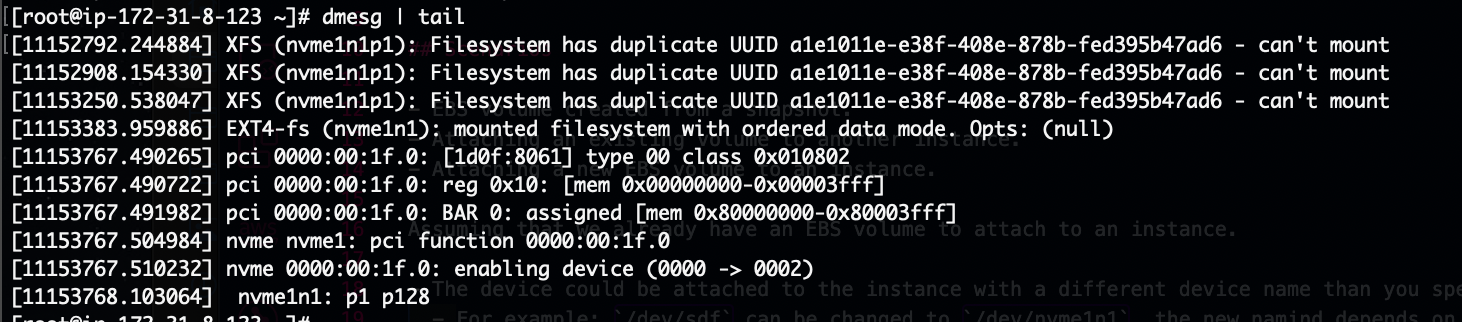
# mount without uuid
mount -o nouuid /dev/nvme1n1p1 /mnt/newvol
# now unmount
umount /mnt/newvol
# generate a new uuid
xfs_admin -U generate /dev/nvme1n1p1
#finally mount with uuid
mount /dev/nvme1n1p1 /mnt/newvol
Troubleshooting
This will help in while increasing the size of the ebs volume greater than 2TB.
- If you are not able to increase the size of ebs volume greater than 2TB on server then check the current growpart package using below command.
- Run this command
rpm -qa| grep -i growpartand check output as shown below in ss. - If the package version is 0.29 then we can't increase the size of ebs volume greater than 2TB.
- In this case, Upgrade the growpart package version using below command. package version shoule be greater than or equal to 0.31.
sudo yum update cloud-utils-growpart
- After upgrading the growpart package version then you can continue with the same steps to increase the volume size.
- Run this command
